35+ Best Product Design Software Tools in 2026 [Free & Paid]
35+ Best Product Design Software Tools in 2026 [Free & Paid]
35+ Best Product Design Software Tools in 2026 [Free & Paid]
The top product design software isn’t the one with the most features. It’s the one that helps your team move from idea → prototype → validated design without slowing down.
Top product design software includes tools for UI/UX design, prototyping, user testing, developer handoff, and (for physical products) CAD + rendering.
If you’re building fast, juggling feedback, and jumping between files, your tool stack is quietly costing you time and quality. This guide breaks down the best product design tools of 2026 (free and paid) organized by the exact stage where teams use them.
Class recognizes class, and if you’re here, you’re already serious about great design.
And the business case is real: McKinsey found top-quartile design performers outgrew industry revenue growth by as much as two to one (1).
Short on time? These are the fastest, safest picks based on real product team workflows.
Each tool below stands out for a specific stage of product design, from UI and prototyping to testing and CAD. Use this as a shortcut before diving into the full comparison.
Best overall: Figma
Best free (UI): Penpot
Best for prototyping: ProtoPie
Best for user testing: Maze
Best for CAD modeling: Fusion 360
Best for iPad CAD: Shapr3D
Best for rendering: KeyShot
Best AI tool: Uizard
How We Picked These Tools (Our Selection Criteria)
Here’s how we chose what made the cut:
1) We mapped tools to real product design stages.
We only included tools that clearly fit into at least one stage teams actually use: ideation → UI design → prototyping → user testing → developer handoff → (optional) CAD + rendering.
2) We prioritized tools that teams can collaborate in (without chaos).
If a tool doesn’t make feedback, versioning, and handoff easier, it doesn’t belong on a “top” list. We favored tools with real-time collaboration, clear sharing, and clean workflows for distributed teams.
3) We included both digital and physical product workflows.
“Product design” isn’t only UI. So we included:
UI/UX design and prototyping tools (apps, SaaS, web)
CAD, 3D modeling, and rendering tools (hardware, industrial design, packaging)
4) We avoided outdated or “legacy-only” recommendations.
If a tool is no longer actively improving, it’s not a top recommendation for 2026. (Some tools can still be useful if your team already uses them—but we won’t label them as best picks.)
5) We looked for tools with strong learning support + community.
Tools with strong communities typically mean: faster onboarding, better templates, and easier hiring/training. We leaned toward tools with proven adoption and healthy ecosystems.
6) We included free + paid options, not just expensive suites.
Some of the best product design results come from smart stacks, not big budgets. So we included free/open-source tools alongside enterprise-grade picks—so teams can start strong and scale later.
7) We prioritized clarity over hype.
Every tool in this guide includes:
What it’s best at
Who should use it
Who should skip it
UI/UX Interface Design Tools
UI/UX interface design tools help product teams design screens, build reusable components, and collaborate in real time.
If your work is mostly apps or web products, this is the core product design software category you’ll use every day.
Price: Free (limited); Pro starts at $12/editor/month
OS: Web-based (Mac/Windows/Linux) + desktop apps
Free/Paid: ✅ Free + Paid
Users: 60M+ users, 200K+ orgs (as of 2024)
G2 Rating: ⭐ 4.7/5 (5,000+ reviews)
What it’s best at:
Figma is built for teams that design fast and iterate together. It combines UI design, prototyping, feedback, and developer handoff in one shared workspace.
Why teams use it:
Real-time collaboration (multiple designers in one file)
Built-in prototyping + comments for quick iteration
Strong handoff workflow + plugins + shared design systems
Limitations:
Free plan can feel limiting for larger teams/projects
Performance can slow down on very large files
Who should use this:
Teams designing digital products (apps, web platforms, SaaS) that need speed + collaboration.
Who should skip this:
Teams that must work fully offline all the time, or that only do heavy mechanical CAD work.
Price: Free (cloud); paid plans for teams and enterprise; self-hosting available
OS: Web-based (works on Mac, Windows, Linux via browser)
Free/Paid: ✅ Free tier available; paid plans for advanced team features
Used by: Open-source teams, startups, and privacy-focused organizations (exact figures undisclosed)
G2 Rating: 4.6/5 ⭐ (300+ reviews)
What it’s best at:
Penpot is an open-source product design tool for UI/UX teams that want a Figma-like experience without vendor lock-in.
It’s ideal for interface design, wireframes, and collaborative design systems with developer-friendly workflows.
Why teams use it:
Open-source with optional self-hosting for better control and security
Real-time collaboration in the browser, similar to Figma
Strong developer handoff with inspectable CSS, SVG, and code-friendly assets
Limitations (1–2 bullets):
Smaller plugin ecosystem compared to Figma or Adobe
Fewer advanced prototyping features than dedicated prototyping tools
Who should use this:
Teams that want a free, open-source product design tool for UI/UX with strong collaboration and dev handoff.
Who should skip this:
Large enterprises that rely heavily on advanced plugins, mature templates, or complex motion prototyping.
Whiteboarding & Collaboration Tools
Whiteboarding tools help product teams run workshops, map user journeys, and align stakeholders before high-fidelity design begins.
Use these when your goal is clarity and alignment first, then move into UI design tools like Figma.
Tool
Best For
Free Plan
OS Support
Collaboration
Starting Price
G2 Rating
Miro
Workshops, UX mapping, team ideation
✅ Yes
Web, Mac, Windows, Linux (+ mobile)
Real-time collaboration + async comments
Free; paid from $4/user/mo
⭐ 4.7
FigJam
Fast brainstorms + Figma-connected workshops
✅ Yes
Web (Mac/Win/Linux via browser)
Real-time collaboration
Free; paid via Figma plans
⭐ 4.6
Mural
Facilitated workshops + stakeholder alignment
✅ Yes
Web + desktop (Mac/Windows)
Real-time collaboration + facilitation tools
Free; paid from ~$9.99/user/mo
⭐ 4.6
5. Miro: Best for Workshops & Early Product Thinking
Price: Free plan available; Pro plans from $4/user/month
OS: Web-based (Mac, Windows, Linux); mobile apps available
Free/Paid: ✅ Free tier available; paid plans for teams
Used by: Widely used across enterprise teams, including many Fortune 100 companies
G2 Rating: 4.7/5 ⭐ (2,000+ reviews)
What it’s best at:
Miro is a collaborative whiteboard tool for product teams to map ideas, user journeys, flows, and early concepts together in real time.
It’s ideal for discovery workshops, brainstorming, UX mapping, and aligning stakeholders before high-fidelity design begins.
Why teams use it:
Real-time collaboration for remote and distributed product teams
Flexible whiteboards for user journeys, flows, wireframes, and workshops
Easy sharing, comments, and async feedback in one shared workspace
Limitations:
Not a UI design tool for creating final interface screens
Prototyping interactions are limited compared to dedicated prototyping tools
Who should use this:
Product, design, and strategy teams that need a shared space for workshops, mapping, and early-stage product thinking.
Who should skip this:
Designers looking for a primary tool to create final UI screens or complex interactive prototypes.
6. FigJam: Best for Fast Workshops and Team Brainstorms
Price: Included in Figma plans; free option available (paid collaboration seats vary)
OS: Web-based (works on Mac/Windows/Linux via browser)
Free/Paid: ✅ Free + Paid
Used by: Product, design, and engineering teams (exact figures undisclosed)
G2 Rating: ⭐ 4.6/5 (rating varies by time)
What it’s best at:
FigJam is a lightweight, collaborative whiteboard built for product teams that want to brainstorm, map flows, run workshops, and align fast—without turning everything into messy docs.
Teams that run lots of workshops (discovery, planning, retros, stakeholder alignment).
Who should skip this:
Teams that mainly need UI design/prototyping rather than whiteboarding.
Wireframing & Prototyping Tools
Wireframing and prototyping tools help you test flows before development, so you catch usability issues early and avoid expensive rework later.
Use low-fi tools for structure, and high-fi tools when you need realistic interactions, motion, or app-like behavior.
Tool
Best For
Free Plan
OS Support
Interaction Depth
Learning Curve
Starting Price
G2 Rating
Framer
High-fidelity interactive demos
✅ Yes
Web, macOS, Windows
Advanced animations
Medium
Free; paid plans
⭐ 4.6
Axure RP
Logic-heavy UX flows
❌ Trial
macOS, Windows
Conditional logic
High
Paid (trial)
⭐ 4.5
Balsamiq
Fast low-fi wireframes
❌ Trial
Web, macOS, Windows
Low-fi click-through
Low
Paid (trial)
⭐ 4.4
ProtoPie
Advanced no-code prototyping
✅ Yes
macOS, Windows (+ mobile)
Device gestures/sensors
Medium–High
Free; paid plans
⭐ 4.6
UXPin
Interactive prototypes close to real product
❌ Trial
Web
Logic + components
Medium–High
Paid; from ~$29/editor/mo
⭐ 4.2
Marvel
Simple clickable prototypes + quick testing
✅ Yes
Web (+ mobile preview apps)
Basic click-through
Low
Free; paid plans
⭐ 4.4
Proto.io
No-code app prototypes with realistic UI behavior
❌ Trial
Web
App-like interactions
Medium
Paid; from ~$29/mo
⭐ 4.1
Origami Studio
Advanced motion + interaction prototyping (free)
✅ Yes
macOS (+ iOS preview app)
Motion + interaction modeling
High
Free
⭐ N/A
Principle
Timeline-based UI animations + micro-interactions
❌ No
macOS
Motion + transitions
Medium
$129 one-time
⭐ 4.3
8. Framer: Best for High-Fidelity Interactive Prototypes
Price: Free plan available; paid plans for teams and published projects
OS: Web-based with desktop apps for macOS and Windows
Free/Paid: ✅ Free tier available; paid plans for teams and production use
Used by: Product teams, startups, and design-led companies (exact figures undisclosed)
G2 Rating: 4.6/5 ⭐ (1,000+ reviews)
What it’s best at: Framer helps teams create high-fidelity, interactive prototypes that feel close to real products.
It’s ideal for demos, stakeholder reviews, and testing realistic interactions before development.
Why teams use it:
Advanced interactions and animations without heavy coding
Fast prototyping for realistic user flows and micro-interactions
Easy sharing of live prototypes via links
Limitations:
Steeper learning curve than basic wireframing tools
Not designed for complex CAD or engineering workflows
Who should use this : Designers and product teams that need realistic, interactive prototypes for demos and usability testing.
Who should skip this (1 line): Teams that only need quick, low-fidelity wireframes or static mockups.
9. Axure RP: Best for Complex UX Flows & Logic-Heavy Prototypes
Price: Paid plans for individuals and teams (free trial available)
OS: macOS and Windows
Free/Paid: ❌ Paid tool (trial available)
Used by: Enterprise UX teams and agencies (exact figures undisclosed)
G2 Rating: 4.5/5 ⭐ (400+ reviews)
What it’s best at:
Axure RP is built for advanced prototypes that include conditional logic, dynamic panels, and complex user flows.
It’s widely used for enterprise apps and data-heavy products where realistic behavior matters.
Why teams use it :
Supports logic-based interactions and conditional workflows
Strong documentation and UX specification features
Good for complex, multi-step enterprise product flows
Limitations:
UI feels dated compared to modern design tools
Heavier learning curve for beginners
Who should use this:
UX designers working on complex products that need logic-rich prototypes before development.
Who should skip this:
Early-stage teams that just need fast visual mockups or simple click-through demos.
10. Balsamiq: Best for Fast Low-Fidelity Wireframes
Price: Paid plans for cloud and desktop (free trial available)
OS: Web-based; desktop apps for macOS and Windows
Free/Paid: ❌ Paid tool (trial available)
Used by: Product managers, UX designers, and startups (exact figures undisclosed)
G2 Rating: 4.4/5 ⭐ (700+ reviews)
What it’s best at:
Balsamiq is built for creating quick, low-fidelity wireframes that keep teams focused on structure, not visuals.
It’s ideal for early product discussions, scoping sessions, and fast idea validation.
Why teams use it:
Extremely fast wireframing with a simple drag-and-drop interface
Keeps designs intentionally low-fi to avoid premature polish
Easy for non-designers (PMs, founders) to contribute
Limitations:
Not suitable for high-fidelity UI design or polished visuals
Limited interaction and prototyping features
Who should use this:
Product teams that want to sketch and validate ideas quickly before investing in detailed design.
Who should skip this:
Design teams looking for pixel-perfect UI design or interactive prototypes.
11. ProtoPie: Best for Advanced No-Code Prototyping
Price: Free plan available; paid plans for teams and enterprises
OS: macOS and Windows; player apps for iOS and Android
Free/Paid: ✅ Free tier available; paid plans for advanced features
Used by: Product teams at startups and large enterprises (exact figures undisclosed)
G2 Rating: 4.6/5 ⭐ (300+ reviews)
What it’s best at:
ProtoPie lets designers create realistic, high-fidelity prototypes with advanced interactions and device behaviors.
It’s great for simulating gestures, sensors, and real app-like flows without writing code.
Why teams use it:
Supports complex interactions, gestures, and device inputs
Prototypes run on real devices for realistic user testing
Integrates well with Figma, Sketch, and Adobe XD
Limitations:
Not intended for visual design from scratch
Can feel complex for simple prototyping needs
Who should use this:
Designers who need highly realistic prototypes to test interactions before development.
Who should skip this:
Teams that only need simple clickable prototypes or basic wireframes.
💡 Do you know?
ProtoPie shared that Meta assessed 13 different design tools before choosing ProtoPie for high-fidelity prototyping. (3)
12. UXPin: Best for Interactive Prototypes That Feel Close to Real Product
Price: Paid plans typically start around $29/editor/month (trial available)
OS: Web-based
Free/Paid: ❌ Paid (trial available)
Used by: Product and UX teams building realistic prototypes (exact figures undisclosed)
G2 Rating: ⭐ 4.2/5
What it’s best at:
UXPin is built for teams that want prototypes to behave like real products—great for realistic interactions, logic, and component-based workflows.
Why teams use it:
Interactive prototypes that go beyond simple click-through
Strong for design systems and reusable components
Helpful for enterprise UX flows where behavior matters
Limitations:
Not as lightweight as basic wireframing tools
Best value shows up when teams commit to component-based workflows
Who should use this:
Teams that need realistic prototypes for complex products and want fewer gaps between design and build.
Who should skip this:
Teams that only need quick wireframes or simple clickable demos.
13. Marvel: Best for Simple Clickable Prototypes and Quick Testing
Price: Free plan available; paid plans vary by team size
OS: Web-based + mobile preview apps
Free/Paid: ✅ Free + Paid
Used by: Designers, PMs, and teams needing simple prototypes (exact figures undisclosed)
G2 Rating: ⭐ 4.4/5
What it’s best at:
Marvel is a lightweight prototyping tool that helps teams turn screens into simple interactive prototypes for reviews and quick validation.
Why teams use it:
Fast, clickable prototypes without heavy setup
Easy sharing with stakeholders
Helpful for teams that want speed over complexity
Limitations:
Not ideal for advanced interactions or complex logic
Not meant to replace high-fidelity motion prototyping tools
Who should use this:
Teams that need quick prototypes for feedback, reviews, and lightweight validation.
Who should skip this:
Teams are building complex interactive prototypes with gestures, logic, or advanced animations.
14. Proto.io: Best for No-Code App Prototypes with Realistic UI Behavior
Price: Plans typically start around $29/month (trial available)
OS: Web-based
Free/Paid: ❌ Paid (trial available)
Used by: Startups, agencies, and product teams prototyping apps (exact figures undisclosed)
G2 Rating: ⭐ 4.1/5
What it’s best at:
Proto.io is a no-code prototyping platform for building realistic app prototypes quickly—useful when you want screens to feel like a working product.
Why teams use it:
Drag-and-drop UI with interactive components
Great for realistic demos before development
Strong for presenting app-like behavior to stakeholders
Limitations:
Not a primary UI design tool like Figma
Can feel heavy if you only need basic wireframes
Who should use this:
Teams that want realistic prototypes for demos, investor decks, or usability testing.
Who should skip this:
Teams that only need basic click-through prototypes or early wireframes.
15. Origami Studio: Best for Advanced Motion + Interaction Prototyping (Free)
Price: Free
OS: macOS (with iOS companion app for device preview)
Free/Paid: ✅ Free
Used by: Designers prototyping complex interactions (exact figures undisclosed)
G2 Rating: ⭐ Not consistently listed as a standalone tool on G2
What it’s best at:
Origami Studio is Meta’s free prototyping tool for building advanced interactive prototypes—especially motion-heavy interactions and realistic UI behaviors.
Why teams use it:
Powerful interaction modeling for complex UI motion
Great for prototyping micro-interactions and transitions
Device preview makes prototypes feel real
Limitations:
macOS-only
Steeper learning curve than mainstream tools
Who should use this:
UX/product designers who care deeply about interaction design and motion realism.
Who should skip this:
Teams that want fast, simple prototypes with minimal learning curve.
16. Principle: Best for Timeline-Based UI Animations and Micro-Interactions
Price:$129 one-time license per computer
OS: macOS
Free/Paid: ❌ Paid
Used by: Designers creating animation-heavy prototypes (exact figures undisclosed)
G2 Rating: ⭐ 4.3/5
What it’s best at:
Principle is a Mac-first tool for designing UI animations and interactive transitions using a simple timeline approach—great for polished micro-interactions.
Why teams use it:
Timeline-based animation feels intuitive for designers
Great for transitions, gestures, and micro-interactions
Fast way to create polished motion prototypes
Limitations:
macOS-only
Not built for full multi-screen product flows like bigger prototyping platforms
Who should use this:
Designers who want to prototype UI motion and interactions with a clean timeline workflow.
Who should skip this:
Teams that need browser-based collaboration or complex prototype logic.
User Testing, Feedback & Research Tools
User testing and feedback tools help you validate designs with real users before launch, then improve the experience after release using real behavior data.
Use this category when you want proof (not opinions) about what’s working and what’s confusing.
Price: Free plan available; paid plans for teams and enterprises
OS: Web-based with desktop apps for macOS and Windows
Free/Paid: ✅ Free tier available; paid plans for advanced collaboration features
Used by: Product teams at startups and enterprises (exact figures undisclosed)
G2 Rating: 4.4/5 ⭐ (1,000+ reviews)
What it’s best at:
Zeplin helps product teams hand off designs to developers with clear specs, assets, and version history.
It’s ideal for reducing back-and-forth and speeding up implementation after design is approved.
Why teams use it:
Centralized handoff with design specs, measurements, and assets
Version tracking to keep design and development in sync
Integrates with Figma, Sketch, and Adobe XD
Limitations:
Adds another tool to the workflow if your team already uses Figma Dev Mode
Not a full design or prototyping platform
Who should use this:
Teams that want a dedicated handoff layer between design and engineering to reduce delivery friction.
Who should skip this:
Teams already standardized on Figma Dev Mode for handoff and specs.
22. Storybook: Best for Design Systems & UI Component Documentation
Price: Free and open-source
OS: Cross-platform (runs wherever Node.js is supported)
Free/Paid: ✅ Fully free and open-source
Used by: Frontend teams and design system teams (exact figures undisclosed)
G2 Rating: 4.6/5 ⭐ (1,000+ reviews)
What it’s best at:
Storybook is a developer tool for building, documenting, and testing UI components in isolation.
It’s ideal for maintaining consistent design systems and bridging design and frontend teams.
Why teams use it:
Central hub for UI components and design system documentation
Helps designers and developers review components outside the app
Supports visual testing and component QA
Limitations (1–2 bullets):
Requires frontend setup and developer involvement
Not a visual design tool for creating UI from scratch
Who should use this:
Product teams building design systems who want consistent, reusable UI components across products.
Who should skip this:
Non-technical teams looking for a no-code design or prototyping tool.
3D Modeling, CAD & Industrial Product Design Tools
3D modeling and CAD tools help you design physical products with real dimensions, parts, and manufacturing-ready accuracy.
Use this category when you’re building hardware, industrial products, packaging, or anything that needs precise 3D models and renders.
Tool
Best For
Free Plan
Primary Use
Learning Curve
OS Support
Starting Price
G2 Rating
Blender
Free 3D modeling & visuals
✅ Yes
Modeling, rendering, animation
High
macOS, Windows, Linux
Free
⭐ 4.6
Fusion 360
End-to-end CAD/CAM
✅ Limited
CAD, CAM, simulation
Medium–High
macOS, Windows
Free (non-commercial); ~$60/mo
⭐ 4.5
SolidWorks
Precision mechanical CAD
❌ No
Mechanical CAD & simulation
High
Windows
~$1,300/yr
⭐ 4.4
Onshape
Cloud-based collaborative CAD
✅ Limited
Real-time CAD collaboration
Medium
Browser (all devices)
Free (public); ~$1,500/yr
⭐ 4.7
Rhino 3D
Free-form surface modeling
❌ Trial
NURBS surfacing
Medium
macOS, Windows
$995 one-time
⭐ 4.6
SketchUp
Fast beginner 3D concepts
✅ Yes
Concept modeling
Low
Web, macOS, Windows
Free; $299/yr Pro
⭐ 4.5
Shapr3D
iPad-first CAD modeling
✅ Yes
Concept-to-model CAD
Low–Medium
iPadOS, macOS, Windows
Free; paid plans
⭐ 4.7
KeyShot
Photoreal product rendering
❌ No
Rendering & visualization
Medium
macOS, Windows
Paid (varies)
⭐ 4.6
23. Blender: Best for Free & Open-Source 3D Modeling
Price: Completely free and open-source
OS: macOS, Windows, Linux
Free/Paid: ✅ Fully free, no paid plans
Used by: 3M+ active users
G2 Rating: 4.6/5 ⭐ (1,300+ reviews)
What it’s best at: Blender is a full 3D creation suite for modeling, rendering, animation, and simulation at zero cost. It’s ideal for concept design, visual exploration, and creating detailed 3D mockups or assets.
Why teams use it:
100% free and open-source with no license restrictions
Powerful tools for 3D modeling, rendering, and animation
Exports to common formats (STL/OBJ) for 3D printing and prototyping
Limitations:
Not a parametric CAD tool for manufacturing-grade engineering workflows
Steeper learning curve for teams new to 3D design
Who should use this: Designers and product teams who need a free, powerful 3D tool for concept visuals and prototyping.
Who should skip this: Engineering teams that require precise parametric CAD and manufacturing-ready drawings.
Free/Paid: ✅ Free tier available; paid plans unlock advanced AI features
Used by: Product teams, startups, and non-designers (exact figures undisclosed)
G2 Rating: 4.5/5 ⭐
What it’s best at:
Uizard uses AI to turn text prompts, sketches, and screenshots into UI mockups and clickable prototypes.
It’s ideal for moving from idea to interface fast, even if you don’t have deep design skills.
Why teams use it:
Text-to-UI and sketch-to-UI generation speeds up early design
Ready-made templates and components for quick prototyping
Easy sharing for fast stakeholder feedback
Limitations:
AI-generated layouts often need manual refinement
Not designed for production-ready, pixel-perfect UI design
Who should use this:
Founders and product teams who want to prototype UI ideas quickly using AI.
Who should skip this:
Design teams building highly customized, brand-polished interfaces.
32. Galileo AI: Best for Prompt-to-UI Design Concepts
Price: Free trial available; paid plans for teams
OS: Web-based
Free/Paid: Free trial; paid plans for ongoing use
Used by: Product designers and startups exploring AI-first design workflows (exact figures undisclosed)
G2 Rating: 4.4/5 ⭐
What it’s best at:
Galileo AI generates UI screens and layout concepts from simple text prompts. It’s ideal for early-stage exploration, design inspiration, and quick layout drafts.
Why teams use it:
Prompt-to-UI generation speeds up early design exploration
Multiple layout variations help compare design directions fast
Works well alongside Figma for refining AI-generated layouts
Limitations:
Outputs are starting points, not production-ready designs
Customization is limited compared to full design tools
Who should use this:
Designers who want fast AI-generated layout ideas to kickstart the design process.
Who should skip this:
Teams that need complete, production-ready UI without manual refinement.
Price: Currently free (early access / Google Labs experiment)
OS: Web-based (works across Mac/Windows/Linux via browser)
Free/Paid: ✅ Free (early access)
Users: Undisclosed
G2 Rating: N/A (not consistently listed as a standalone design tool on G2)
What it’s best at:
Stitch is Google’s AI UI tool that turns simple text prompts (and image inputs) into UI designs and front-end code in minutes. It’s built to reduce design-to-dev friction, helping teams move from idea → draft screens → build-ready output faster.
Why teams use it:
Generates UI from natural language prompts (fast concept → screen)
Supports image/wireframe inputs to guide direction quickly
Produces front-end code outputs to speed up handoff
Works well as a “first draft” tool before refining in Figma
Limitations:
Still evolving (early access), so outputs can need manual cleanup
Not a replacement for real UX decisions or design-system rules
Best for speed + drafts, not final production polish on its own
Who should use this:
Product teams that want rapid UI drafts + code-ready output to accelerate prototyping and handoff.
Who should skip this:
Teams that need pixel-perfect, brand-polished UI without manual refinement.
Price: Free plan available; paid plans for teams (pricing varies by plan)
OS: Web-based (works in browser on Mac/Windows)
Free/Paid: ✅ Free + Paid
Users: Used by teams in 140+ countries (company milestone; exact user count undisclosed)
G2 Rating: ⭐ 4.2/5 (review volume varies)
What it’s best at:
Visily helps teams generate wireframes and early UI screens using AI—especially when non-designers (founders, PMs, analysts) need to communicate product ideas without learning complex design tools.
Why teams use it:
AI-assisted wireframing from text, screenshots, and diagrams
Easy for non-designers to produce usable screens quickly
Helpful for fast alignment before committing to detailed UI work
Works well for quick iteration in early-stage product planning
Limitations:
AI layouts still need designer refinement for real product quality
Not ideal for advanced interactions or complex design systems
Smaller ecosystem than full “design platform” tools
Who should use this:
Founders, PMs, and product teams that want fast wireframes and early prototypes without a steep learning curve.
Who should skip this:
Design teams building highly customized interfaces and mature design systems end-to-end.
Price: Free trial available; paid plans available (pricing varies by usage/plan)
OS: Web-based (often used alongside Figma workflows)
Free/Paid: Free trial; paid for full features
Users: Undisclosed (company reports large output volumes; exact user count varies)
G2 Rating: ⭐ 4.2/5 (review volume varies)
What it’s best at:
UX Pilot generates wireframes, high-fidelity screens, and multi-screen flows using AI—then lets you iterate quickly using prompt-based edits. It’s designed to compress early UX work from weeks into hours.
Why teams use it:
Generates wireframes and hi-fi UI screens quickly
Creates multi-screen flows to visualize journeys early
Prompt-based iteration makes revisions fast (“change this section…”)
Works well for MVP exploration and early UX direction-setting
Limitations:
Results can feel generic without strong prompts and constraints
Still requires UX judgment for edge cases and product logic
Best used as a starting point, not a full replacement for design craft
Who should use this:
Teams that want AI-assisted UX + UI generation to move faster from concept → screens → flows.
Who should skip this:
Teams that need fully bespoke UX design without relying on AI-generated starting points.
36. Adobe Firefly (Creative Cloud): Best for AI-Generated Visual Assets
Price: Included with Creative Cloud membership (pricing varies by plan)
OS: Web + integrated across Adobe apps (macOS, Windows, iPad apps depending on tool)
Free/Paid: Free trial/credits vary; paid plans for full usage
Users: Available to Creative Cloud members (subscriber count varies over time)
G2 Rating: 4.4/5 ⭐ (277 reviews)
What it’s best at:
Adobe Firefly is best for generating and editing visual assets fast—concept images, background variations, visual styles, and production-ready creative experimentation, directly inside Adobe workflows.
Why teams use it:
Fast concepting for brand visuals, marketing assets, and UI illustrations
Tight workflow with Photoshop/Illustrator-style production needs
Great for rapid iteration (variations, fills, edits) without manual rework
Helpful when design teams need “more options” quickly
Limitations:
Not a UI layout generator like Stitch/Uizard-style tools
Credit/usage limits can restrict heavy generation depending on plan
Output quality varies based on prompts and asset constraints
Who should use this:
Design teams that live in Adobe tools and want faster asset creation + iteration for product visuals and brand work.
Who should skip this:
Teams looking for AI to generate complete product screens and UX flows.
2D vs 3D Product Design Software
Choosing between 2D and 3D product design software depends on your product type and design goals. Often, product designers use both, switching between tools based on project phase and purpose.
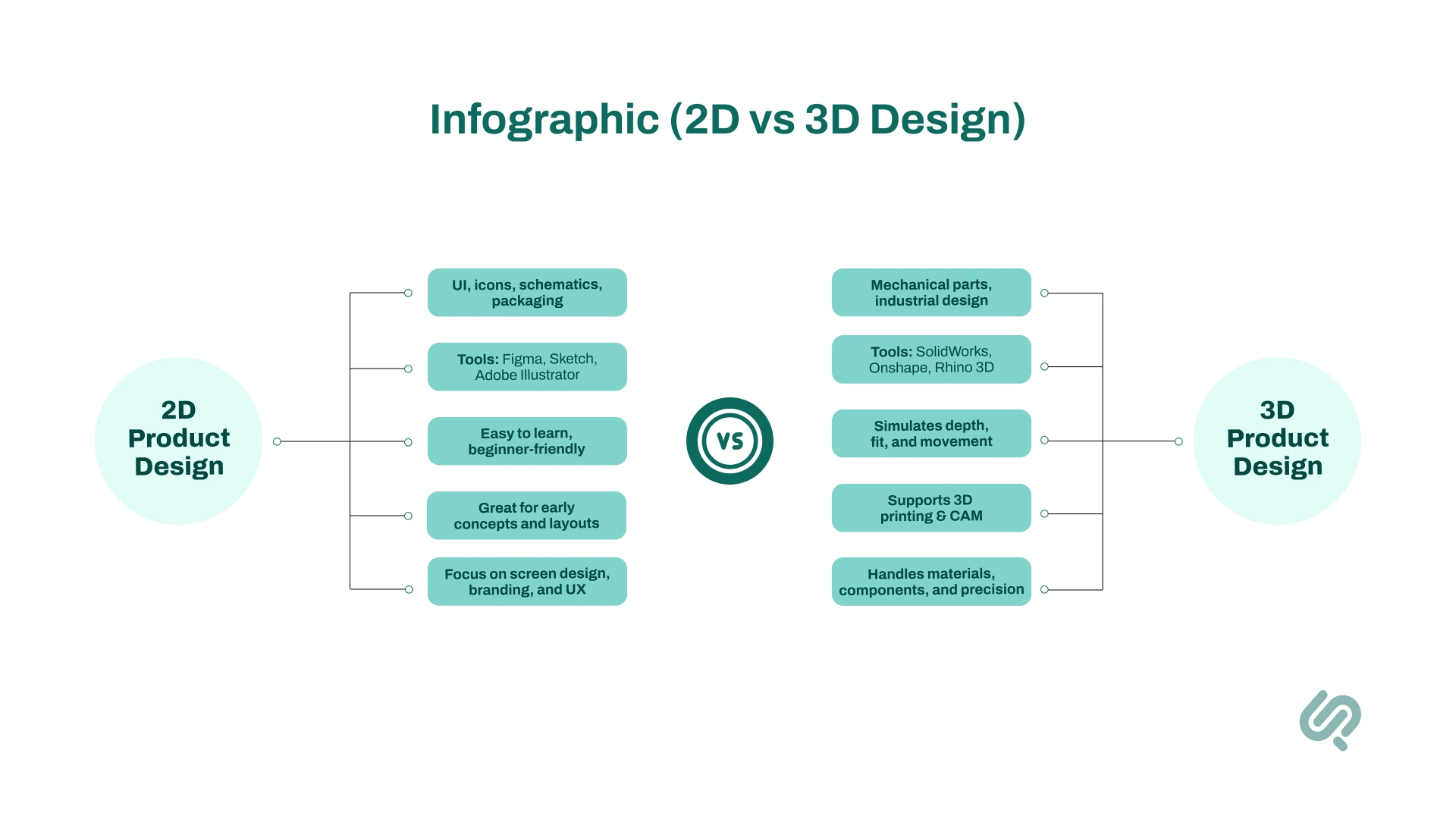
2D product design software is ideal for flat visuals like UI design, icons, schematics, and packaging. Tools like Figma, Adobe Illustrator, and Sketch help visualize user flows and layouts. These are commonly used in UX/UI projects where screens are flat, not physical.
Great for digital interfaces and quick sketches
Easier to learn; works well on both Mac and Windows
Perfect for graphics, schematics, and early concept work
Often used before moving to 3D or manufacturing
3D product design software like SolidWorks, Rhino, or Onshape is essential when building physical products, especially when fit, materials, components, and function matter.
Shows depth, volume, and real-world interaction
Used in mechanical design, additive manufacturing, and industrial design
Simulates how parts will connect or move
Supports 3D printing, CAM, and engineering drawings
Today, most product development workflows combine both. You might design a phone’s casing in Rhino 3D, prototype it with 3D printing, then switch to Adobe XD to build the screen UI.
These tools often integrate, letting teams manage project data, iterate quickly, and ensure quality from concept to final product.
Smart designers know: it’s not about 2D vs 3D. It’s about using the right tool at the right stage.
Recommended Product Design Software Stacks (By Team and Workflow)
Most product teams don’t win by choosing one “perfect” tool. They win by building a tool stack that covers the full workflow.
Here are practical stacks you can copy based on how your team works.
“There’s no one-size-fits-all product design tool. The best pick depends on your workflow, team, and type of product (digital or physical).”
1. Define Your Project Type 🛠️
Start with what you're designing. Need realistic 3D models with detailed components and materials? Go for CAD tools like SolidWorks or Rhino.
If you're focused on apps or websites, UX/UI tools like Figma or Adobe XD are better. Some projects need both, like designing a wearable and its interface.
That’s where understanding what product design is becomes critical: it often spans physical and digital work.
Make sure your tools support your full range.
2. Match the Tool to Your Skill Level 👶
Beginners thrive on intuitive tools like SketchUp or TinkerCAD. They're great for getting started without overwhelming menus.
Professionals might need precision modeling or simulation features, which tools like Rhino or SolidWorks provide.
Overkill can slow you down, so start with tools that fit your current experience.
For teams, you can mix levels. Simpler tools for early mockups, advanced ones for final output.
If you’re having trouble identifying product design tools from ux design tools, check out this guide on product design vs ux design.
3. Check Compatibility with Your System 💻
Some tools work best on specific systems. Product design software for Mac includes Sketch, while product design software for Windows includes SolidWorks.
Others like Onshape or Figma run in the browser, making them great for mixed-device teams.
Always check system requirements and integrations with your stack. Design tools should work with your project management and collaboration tools.
Pro Tip
Mac users may prioritize visual polish, while PC users might value raw performance.
4. Consider Collaboration Features 🤝
Design is rarely a solo effort. Do you need real-time feedback, version control, or stakeholder comments?
Onshape and Figma are top picks with cloud collaboration built-in. This is great for remote teams or distributed product designers.
Avoid emailing multiple versions with “final_v5_FIXED_2”. Get software that supports smooth data sharing and team collaboration.
Features like branching, history, and permission control reduce rework and improve feedback flow.
5. Decide Between Free and Paid Tools 💸
You don’t need to spend big to get started. Tools like FreeCAD, Blender, or GIMP are powerful product design software open source options.
That said, paid tools often offer better polish, support, and advanced features like CAM or simulation.
Think long-term: Will your team grow? Will you need pro exports, better file compatibility, or cloud storage?
Try the free version first, then upgrade if needed. Even product design tools for windows like Fusion 360 offers free startup plans.
6. Look at Features that Match Your Workflow 🧩
Do you need parametric modeling, real-time preview, or support for 3D printing? Make a checklist.
For example, Rhino is great if you work with complex curves and want freedom in modeling.
If you’re building for digital use, look for tools that support interactive UX design or User Interface Design, like XD or ProtoPie.
Don’t forget import/export needs: if you're passing models between tools, compatibility matters more than fancy features.
7. Think About Scalability & Community 🚀
Choosing a popular tool can save you headaches later. With a big user base comes more feedback, plugins, and tutorials.
Tools like Adobe Creative Cloud or Figma have large communities, which means onboarding new team members is easy.
Also, check if the tool works for both solo use and larger teams, with component libraries and asset syncing.
Good community = faster learning. Good scalability = smoother team growth.
Final Verdict: What’s the Best Product Design Software?
There’s no single “best” product design software. Only the best fit for your needs. That said, if we had to pick standouts:
Figma is unmatched for digital design, real-time collaboration, and UI/UX work.
SolidWorks remains the top choice for mechanical and industrial product design with precision.
Here’s what to keep in mind:
Use 2D tools like Figma or Adobe XD for UI, screens, and concept sketches
Use 3D tools like Rhino or Fusion 360 for physical products and prototypes
Mac users have great options like Sketch and Rhino; Windows supports nearly every tool
Free/open-source tools (like Blender or FreeCAD) are great for early-stage projects or teams on a budget
The right tool supports your workflow, your team, and your product goals.
Musa is a senior technical content writer with 7+ years of experience turning technical topics into clear, high-performing content.
His articles have helped companies boost website traffic by 3x and increase conversion rates through well-structured, SEO-friendly guides. He specializes in making complex ideas easy to understand and act on.
Oops! Something went wrong while submitting the form.
Cookie Settings
We use cookies to provide you with the best possible experience. They also allow us to analyze user behavior in order to constantly improve the website for you.












![35+ Best Product Design Software Tools in 2026 [Free & Paid]](https://cdn.prod.website-files.com/61bb26fe53aeb2a18bbd17e4/686e3d6fce74648541304029_1.webp)