
Building A1 DDP - Dubai Silicon Oasis
Industrial Area - 342001 -
Dubai - United Arab Emirates
+971 50 756 2346


SERVICES

COMPANY LINKS
SIGN-UP
For Newsletter



Whether you’re exploring AWS for personal use or launching business workloads, getting started the right way is crucial for security and cost control.
AWS generated over $100 billion in net sales in 2024, making it the world’s leading cloud platform (Statista, 2025).
So, it’s no wonder so many users search for an AWS beginner guide or ‘how to create an AWS account safely and effectively’.
In this article, we’ll guide you through a step-by-step AWS account setup, from how to create a free AWS account to securing your environment with best practices for AWS account setup.
Let’s dive in and get your Amazon Web Services account ready for action.
An AWS account is your personal or business gateway to Amazon Web Services.
Think of it as a digital workspace where you can run websites, store data, or explore new tech without needing your own servers.
When you create an AWS account, you’re setting up access to powerful tools and services through the AWS Management Console. It’s the place where you control your cloud resources, check costs, and keep things secure.
People sign up for AWS for all sorts of reasons:
Whether it’s for business or just exploring AWS for personal use, it’s smart to follow AWS account setup best practices from the start. A secure and well-organized account can save you time, money, and stress later on.
Your Amazon AWS account is the first step on your cloud journey and the start of your step-by-step AWS account setup.
So, let’s discuss how you can start creating your AWS account.

You’ll need to sign up for an AWS account to get started. Follow these steps:
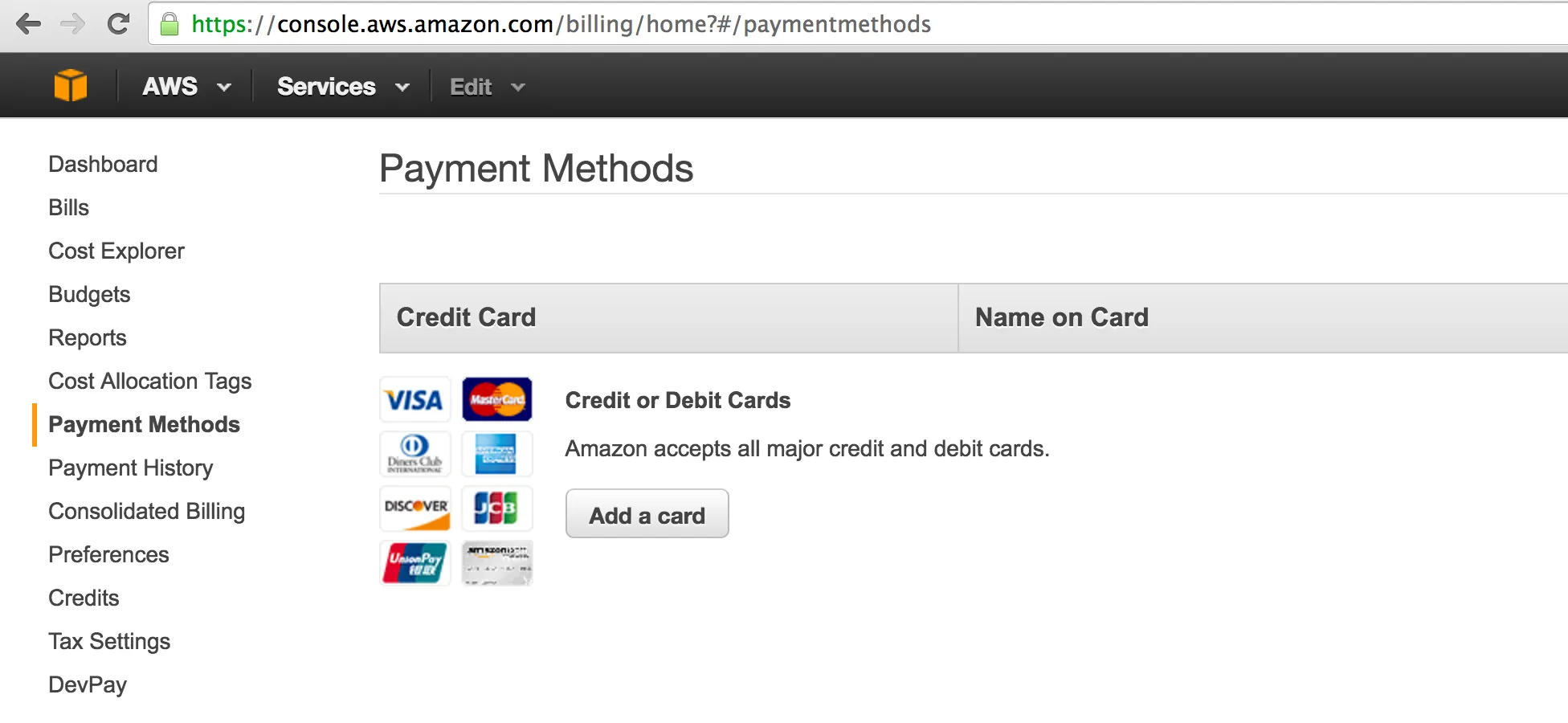
AWS requires a valid payment method to activate your account and cover any usage costs. Here’s how to set it up:
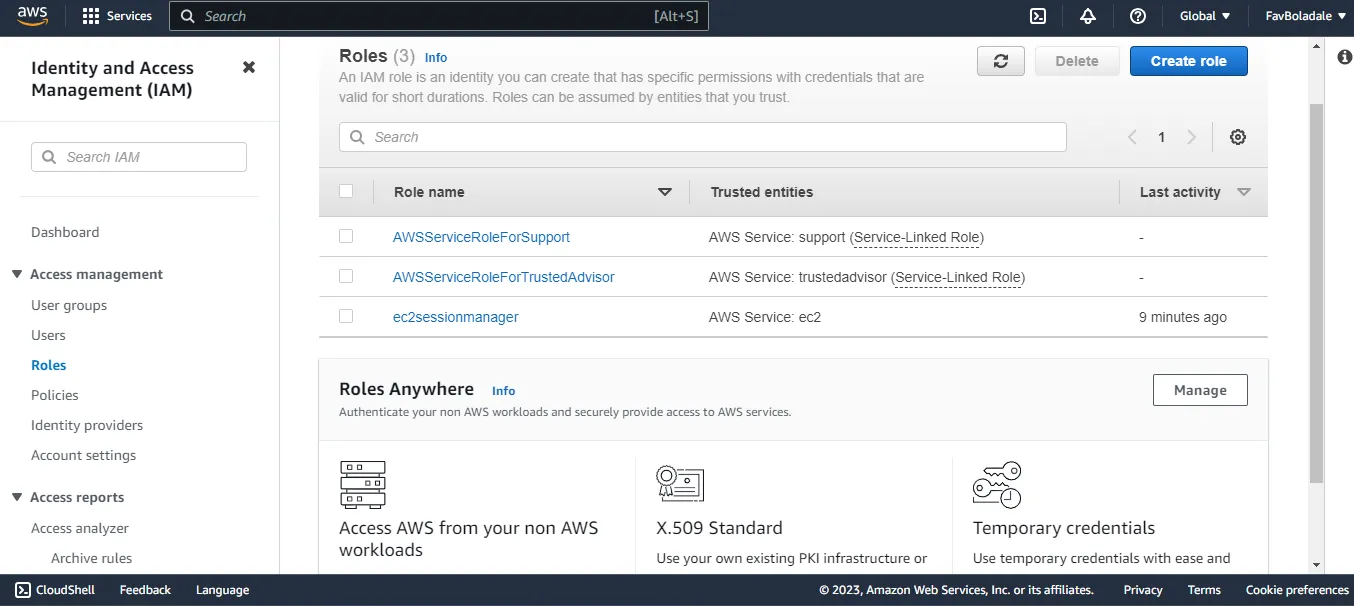
To allow our team to work in your AWS environment, you’ll need to create and share secure credentials, such as an IAM role or access keys.
For security, we recommend using an IAM role, but we’ll cover both options.
An IAM (Identity and Access Management) role allows our team to access your AWS account securely without sharing long-term credentials.
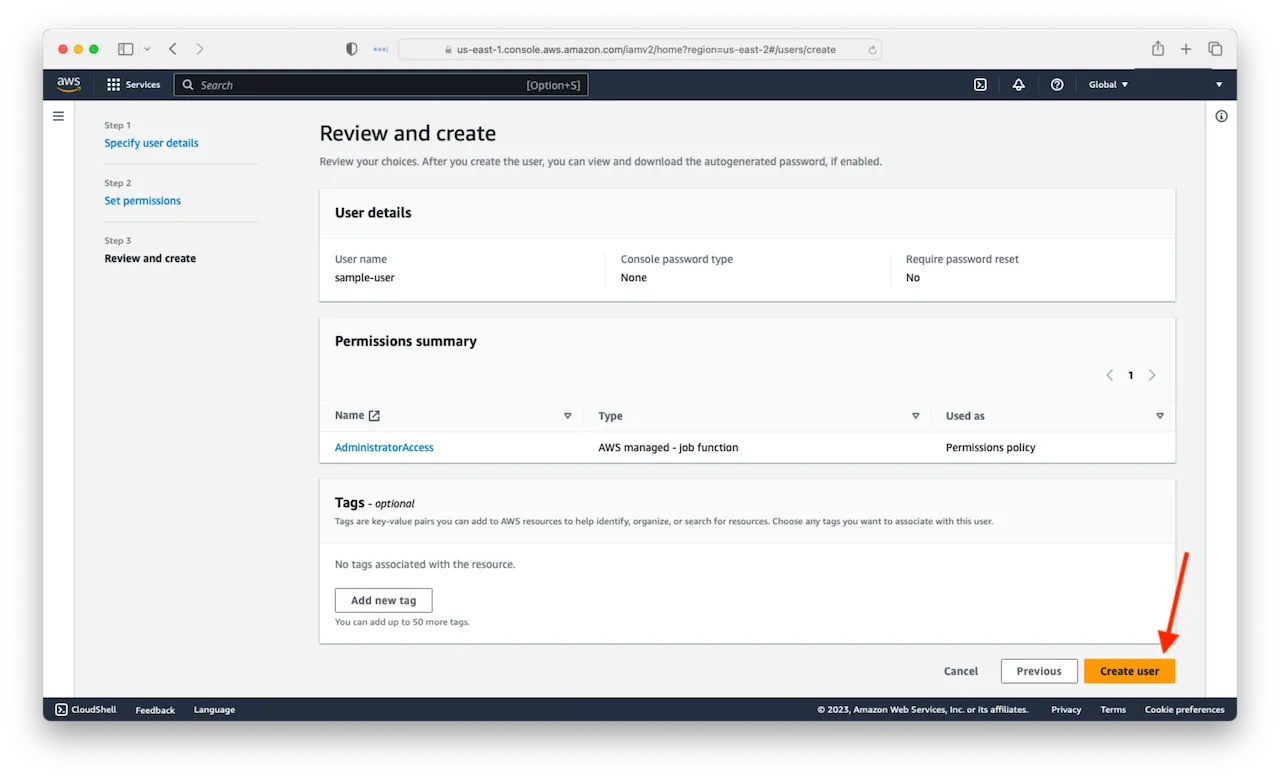
If an IAM role isn’t feasible, you can create access keys for an IAM user. Use this option only if instructed by our team.
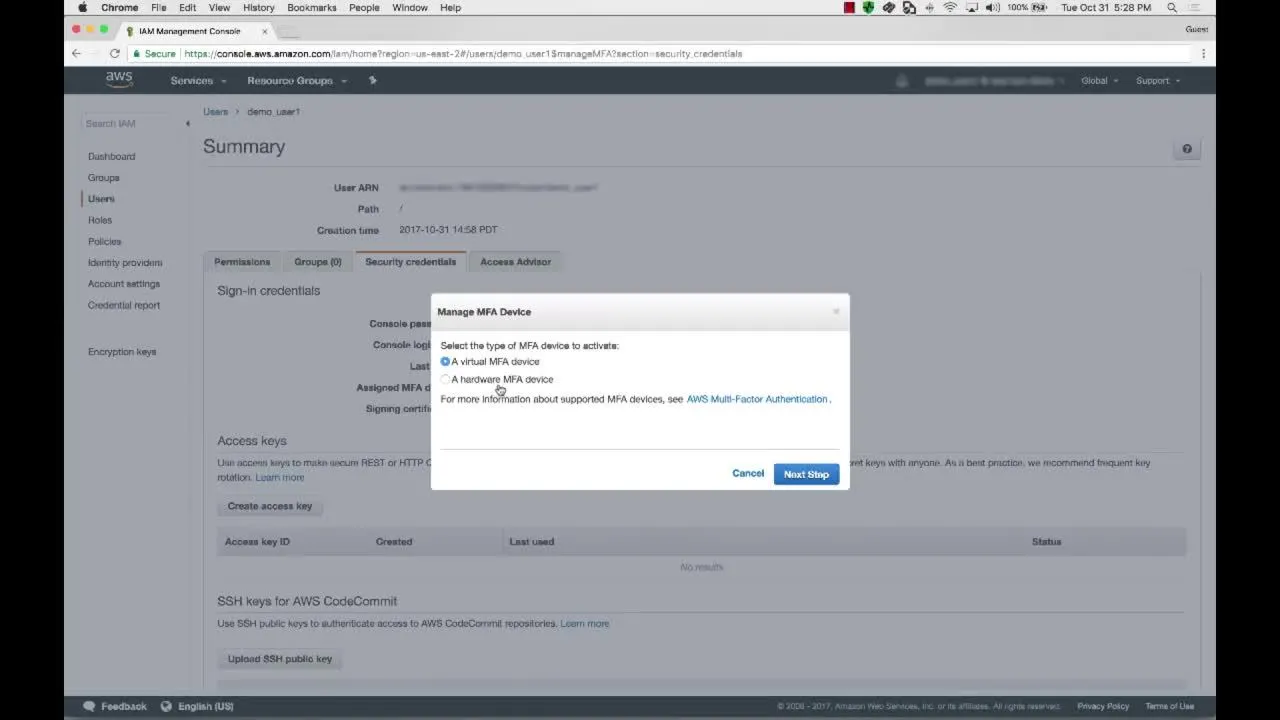
To protect your AWS account, we strongly recommend enabling MFA for your root account and any IAM users.
Once you’ve completed these steps, please share the following with our team via a secure method:
We’ll take it from there to begin working in your AWS environment. If you encounter any issues or have questions, contact us at [your support email or phone number].
Additional Tips:
Thank you for choosing us to help you with your AWS journey.
Once you create an AWS account, it’s tempting to dive straight into building projects. But taking a few smart steps upfront can save you headaches down the road.
Here are some best practices to follow for a secure and well-managed AWS environment.
When you go through the AWS signup or AWS console sign up, always register with a professional or team-based email instead of a personal one. For example, use something like ‘aws-admin@yourcompany.com’.
This makes it easier to manage the account if staff change or if multiple people need access. It also keeps business operations separate from personal activities.
Security should be your first priority right after Amazon Web Services account creation. Enabling Multi-Factor Authentication (MFA) adds a crucial extra layer of protection beyond your password.
For instance, you might use an app like Google Authenticator to generate temporary codes. Even if someone steals your password, they won’t get into your account without the second factor.
It’s easy to lose track of costs in the cloud, especially when you’re getting started with AWS. Head to the Billing section after you create an AWS account and set budgets or alerts to notify you if spending goes over a certain amount.
For example, you could set an alert for $50 to ensure your testing doesn’t accidentally rack up large bills. This is particularly important if you’re exploring how to setup an AWS Free Tier account and want to avoid unexpected charges.
Hint: These days, people are using AI Agents to handle such tasks!
After AWS registration, avoid using the root account for daily work. Instead, create IAM users with only the permissions they truly need.
For example, you might create an admin user for infrastructure management and a read-only user for billing review. This minimizes risks if credentials are exposed and follows the principle of least privilege.
As your projects grow, it becomes harder to remember which resource does what. Right after your AWS new account setup, establish clear naming standards for things like EC2 instances, S3 buckets, and IAM roles.
For instance, instead of naming a server “TestServer,” you might name it “dev-webserver-app1.” This makes management, cost tracking, and troubleshooting much easier.
If you plan to manage multiple projects or environments, consider using AWS Organizations. It helps you create and manage separate accounts under one umbrella, making billing and security controls simpler.
For example, you might have separate accounts for development, testing, and production environments. This strategy improves security boundaries and simplifies cost allocation after your initial Amazon Web Services account creation.
It’s important not to set and forget your cloud environment. Schedule regular reviews of who has access to your account and what permissions they have.
For example, check IAM policies and CloudTrail logs monthly. This helps spot unnecessary privileges or unusual activity early, keeping your account secure after the AWS create account steps are completed.
Setting up your AWS account is more than just filling out forms. It’s the foundation for everything you’ll build in the cloud.
Following each step carefully, from signing up to securing access with IAM roles and MFA, helps protect your data and your budget.
By applying AWS account setup best practices, you’ll avoid common mistakes and set yourself up for smooth operations, whether you’re experimenting with the AWS Free Tier or running mission-critical workloads.
Remember, your Amazon Web Services account creation is the start of a powerful journey into modern cloud computing.
Need expert help navigating your setup or optimizing your AWS environment?



Usman is a dynamic tech lead with 10+ years of experience in building scalable web applications and APIs. He’s skilled in RoR, Angular, Vue, Ember, and other modern frameworks.
Known for solving complex problems with clean, efficient code, he helps teams deliver fast and future-ready products.